If you want to live stream in 4K to YouTube while simultaneously broadcasting to TikTok, things can get complicated fast. As a Creative Solopreneur with over two decades of video production experience, I’ve refined my workflow to keep things simple, high-quality, and reliable. Today, I’m sharing my exact multi-camera setup for product reviews and live demonstrations.
Watch the video on… https://youtube.com/live/Rn6H2YBxZlQ
The Core: YoloBox Extreme
When I go live, I usually skip the phone and the laptop for my main feed. Instead, the heart of my system is the YoloBox Extreme. It’s a dedicated live streaming device that handles multi-camera switching seamlessly. I love it because it acts as a live video switcher, letting me change angles on the spot. This drastically cuts down my post-production workflow—though as I always teach, every edit ultimately needs a proper trim to be high-quality! Right now, I use the YoloBox to push crisp 4K 60fps video directly to YouTube.
The Multi-Camera Strategy
For dynamic product reviews, one camera angle is never enough. I currently run three specific cameras into the YoloBox:
-
The Face Cam (YoloCam S7): I pair this Micro Four-Thirds camera with their new 18mm lens. This combo is incredible because it perfectly simulates the premium, blurred-background look of a DSLR or mirrorless setup.
-
The Tabletop Cam (YoloCam S3): This is my absolute favorite camera right now. I mount it pointing straight down at my desk to show my hands and the products. The automatic focus is highly reliable, requiring almost no adjustment.
-
The Backup/Wide Cam (Obsbot Meet SE): Always have a backup. This AI-powered webcam sits off to the side, giving a great wide overhead shot of my entire workspace.
Crystal Clear Audio: Hollyland Lark M2
Your video is only as good as your audio. My current favorite wireless microphone is the Hollyland Lark M2. It is incredibly discreet—basically a tiny, lightweight button you clip to your shirt. Pro tip: keep it clipped within six inches of your mouth for the absolute best vocal clarity. I run the receiver straight into the line input on the back of the YoloBox.
Connecting to TikTok PC
While the YoloBox handles the 4K YouTube stream, I send a separate video feed out from its USB-C port directly into my Acer Predator Helios Neo 16 gaming laptop. From there, I use TikTok Live Studio to manage the vertical TikTok feed. I use this specific Windows laptop because it easily handles dual-platform streaming, recording, and running presentations during my videography classes.
Don’t Forget Tabletop Lighting
Lighting is crucial. I use a standard key and fill light at 45-degree angles to light my face. However, those lights often get blocked when I lean over the desk. Having a small, dedicated light on the tabletop ensures the product is always perfectly illuminated during close-up demonstrations.
Build Your Setup
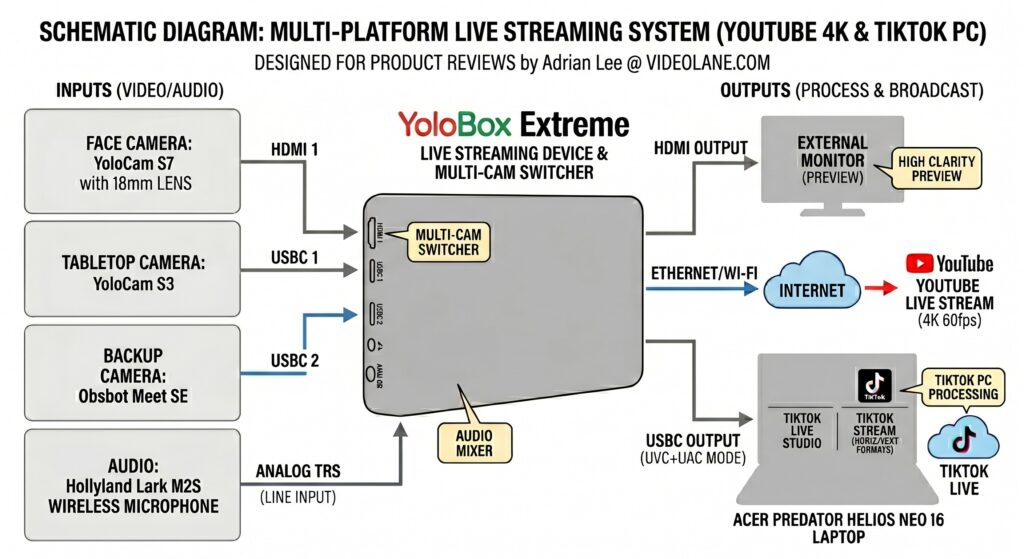
If you are putting together your own multi-camera live streaming studio, I highly recommend the equipment listed above. Purchasing through my affiliate links is a great way to support what I do at no extra cost to you.
If a link is missing, just leave a comment, and I’ll send it to you.
For more training on video creation, head over to videoolane.com to check out my latest classes!
~ Adrian Lee


Discover more from VIDEOLANE.COM ⏩
Subscribe to get the latest posts sent to your email.


